

 (549 votes, average: 3.77 out of 5)
You can download text messages from an iPhone in different ways depending on your goal.
- If you need to provide legal records, better do it via a Windows PC to preserve all attachments and timestamps. But if you don’t have a computer, you can create PDF documents and then print your messages from the iPhone.
- If you are switching to a new phone and want to keep old chats, it’s easier to transfer your messages from one iPhone to another via Quick Start.
- If you’re looking for a way to archive conversations with photos and videos, you can only do it on a PC with a third-party app. I’ll show you how to export text messages from an iPhone using CopyTrans Contacts.
Table of contents:
All SMS and messaging apps in one place, preserve all the information and attachments → On PC
Free manual export, without computer → On iPhone
TL;DR
- Yes, you can export your iPhone text messages with all the attachments without iTunes or iCloud.
- The easiest method on Windows is CopyTrans Contacts:
- Export readable text — not just a backup file you can’t open
- Export in interactive HTML to play voice memos, in PDF for printing or Excel for data analysis
- Works on Windows 7-11
How do I copy an entire text message conversation from iPhone to computer?
- Download and install CopyTrans Contacts on your Windows PC
- Connect your iPhone to the PC and wait for the loading to finish.
- Select the conversation or separate message, click on “Export” and the desired format.
In the trial version of CopyTrans Contacts, you can export only 50 text messages. Your card details or email are not required for the trial version. If the software suits your requirements, you can purchase a full license at 19.99 USD. It’s a one-time payment, not a subscription.
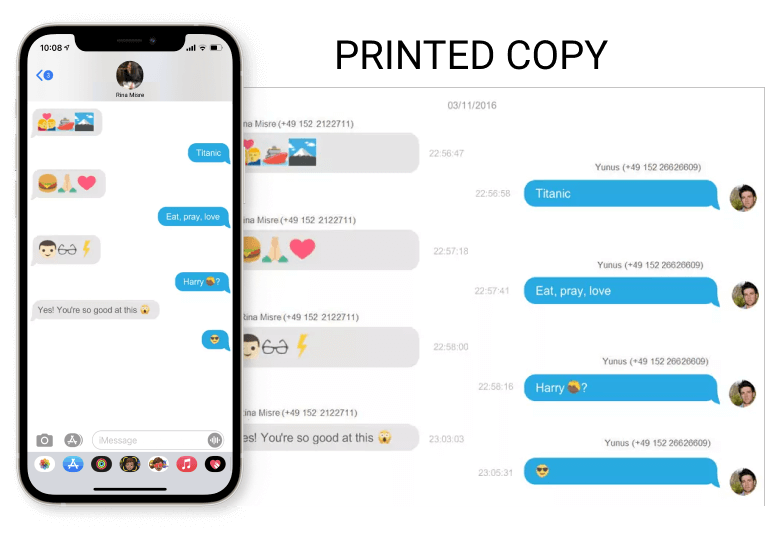
Pros of CopyTrans Contacts:
- Back up only your messages, not your entire iPhone;
- Export SMS, iMessages, and WhatsApp chats with photos and videos in readable formats (HTML, PDF, Word, Excel);
- Store everything safely on your PC – no cloud required.
Export text messages from iPhone with CopyTrans Contacts
detailed steps and troubleshooting
CopyTrans Contacts acts as an SMS converter, turning your text messages to documents quickly and efficiently. After you save your texts to PC, you are free to print or edit them.
You can watch this short video or follow the steps described below. You will also find possible troubleshooting steps and FAQ after the steps.
- Download and install CopyTrans Contacts from the following page:
Download CopyTrans Contacts
If you need help installing CopyTrans Contacts, please refer to the installation guide. - Run CopyTrans Contacts and connect your iPhone to computer with a USB cable.
- If your iPhone is encrypted, CopyTrans Contacts will ask you to enter your iPhone backup password. It’s a password that you once created in iTunes. How to reset the iOS Backup Password if I don’t remember it?
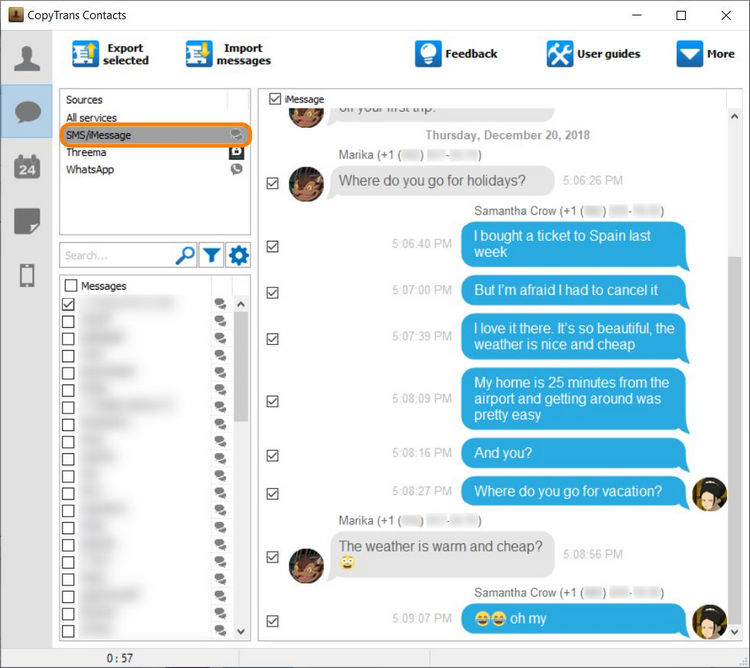
- Click the speech bubble icon on the left side of the window. You will see all your iPhone text messages.
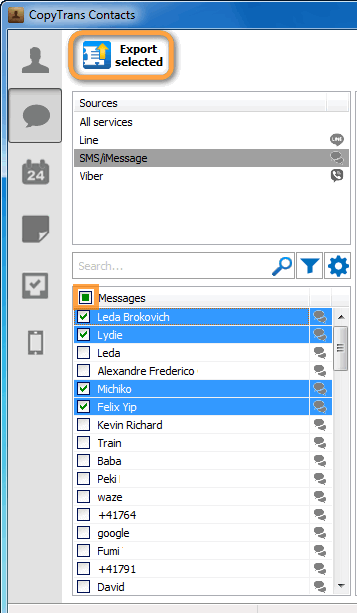
- Select SMS/iMessage (or WhatsApp, Viber, Line, Threema) from the “Sources” pane on top. Choose the conversations you want to save.
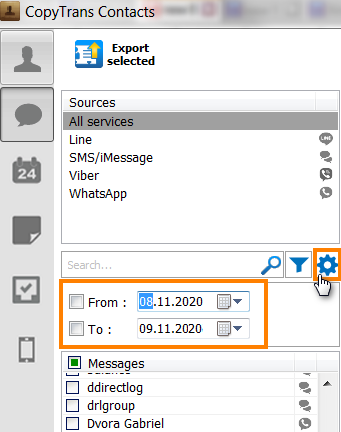
- To export messages of a specific time period, click on the cogwheel symbol under the list of services and choose exact time frames.
- Download text messages from your iPhone to computer by clicking on Export selected.
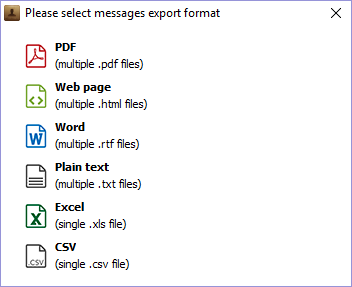
- Next, select the backup format:
- PDF (good for printing);
- HTML (the most complete and interactive);
- Word (possible to edit);
- TXT (plain text only and the attachments saved to a separate folder);
- Excel (plain text only and the attachments saved to a separate folder).
- I will select Word as an example, but you can choose the format you want.
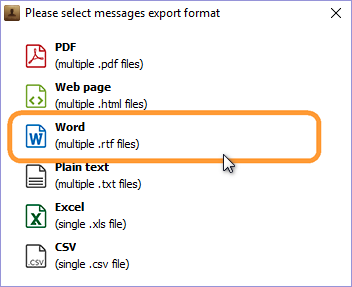
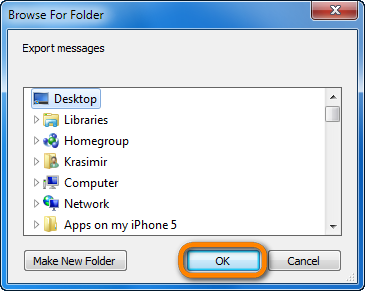
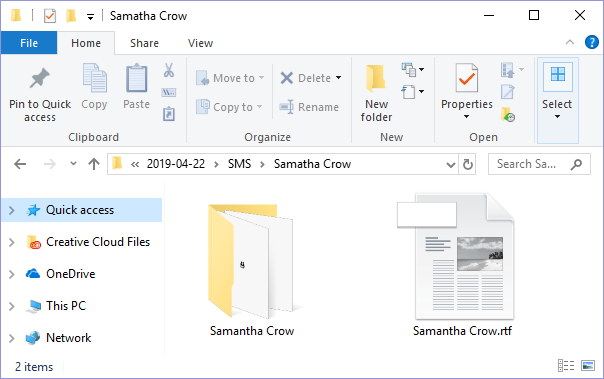
- Choose the folder to save the iPhone text messages. If unsure, select Desktop. Click OK.
- CopyTrans Contacts will create a folder with your attachments right next to the exported chats.
- You downloaded the text messages from your iPhone!
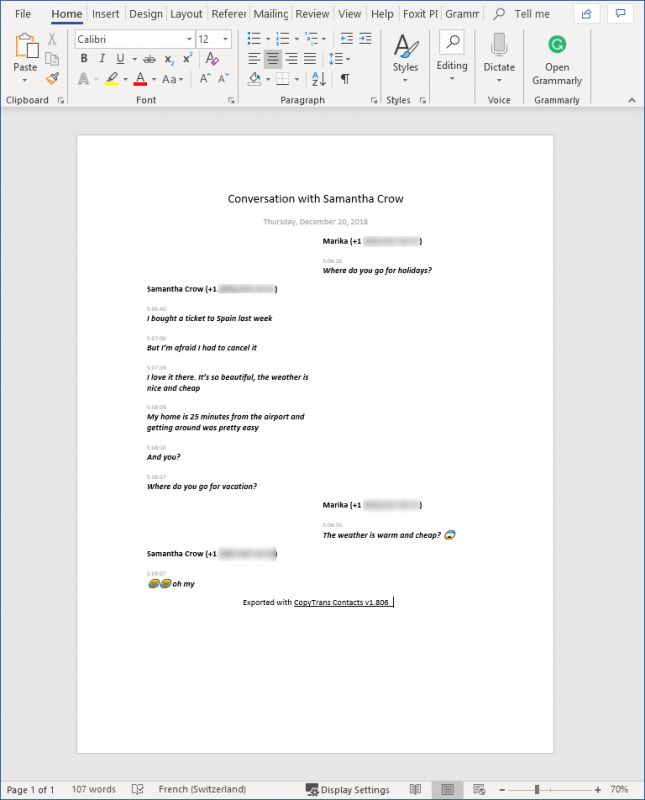
- You can now open the exported document by double-clicking on the file. Here’s how a Word document looks like.
Please wait until all your messages finish loading (the spinning wheel in the bottom-right corner should disappear). It may take quite a while, but only for the first time. On subsequent launches the program should run much faster.
FAQ
Is CopyTrans Contacts safe to use on my PC?
If you downloaded the software from the official website https://www.copytrans.net/, the developer guarantees that there is no malware or viruses. You can also upload the installer to Virus Total to check it for possible viruses. You can also contact the CopyTrans Support Team by mail.
Can I back up only selected iPhone conversations?
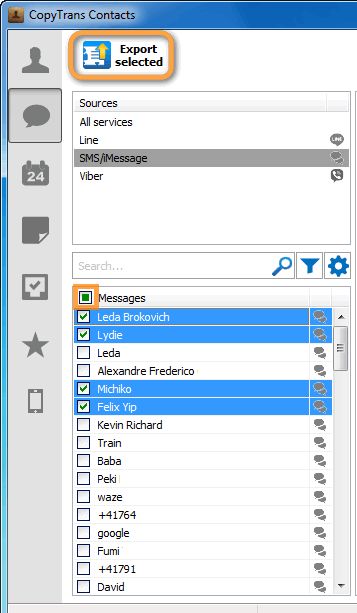
Yes, tick the box next to the name of the conversations you want to export and then click the “Export” button on top of the window.
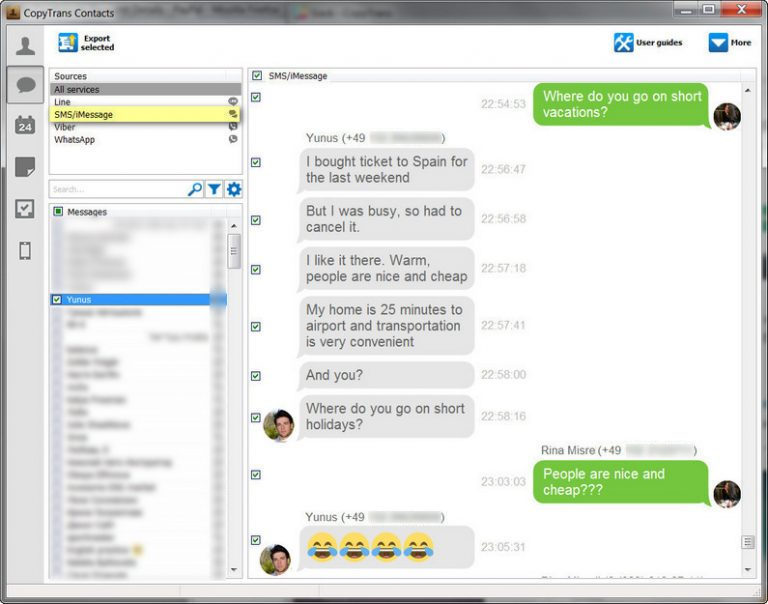
You can also open the conversation in CopyTrans Contacts and select the exact messages you want to export.
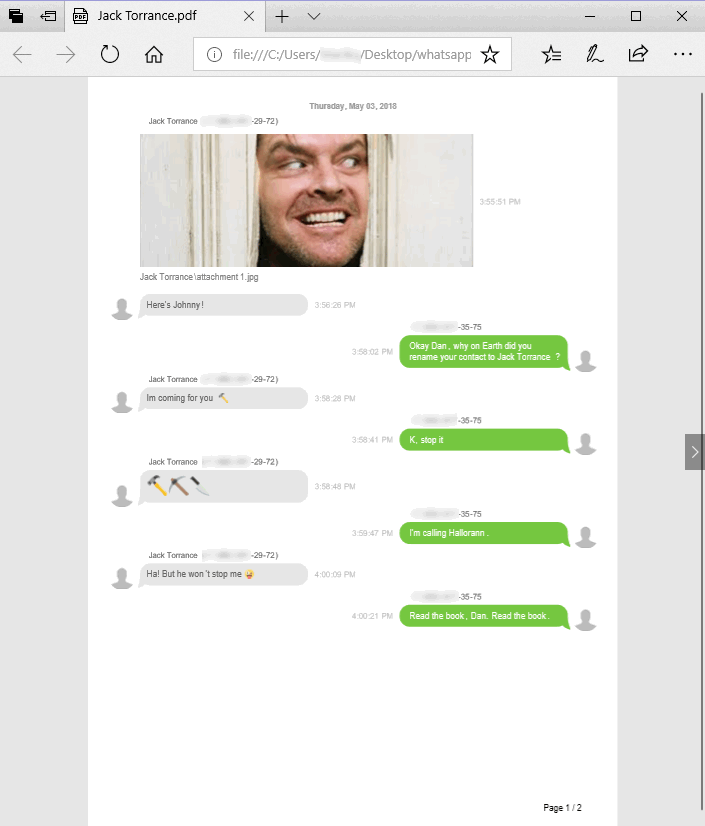
Does CopyTrans Contacts save timestamps and sender info?
Yes, here’s how the exported document looks like.
Why are extraction tools not free?
It’s quite time and energy consuming to find a way to first read iPhone data and then copy them over to a computer. Especially, if it’s a computer that works on a system totally different from iOS. It requires work of several developers over an extended period of time.
Troubleshooting
I exported my conversation but some attachments are missing in the exported document
Can you see the attachments in the CopyTrans Contacts interface? If not, send your log files to the customer support team. But if the attachments are present in CopyTrans Contacts, there can be a few reasons why they are not shown in the exported document:
- The exported format doesn’t support these attachments. Try to export in the most compatible Web Page (HTML) format.
- Synchronization of messages with iCloud is on. Your attachments are stored in iCloud. CopyTrans Contacts can see their previews but cannot download them, as they are not stored on your iPhone. Log in to your iCloud account in CopyTrans Contacts.
My messages are not fully loaded in CopyTrans Contacts
The progress circle is endlessly spinning in the lower-right corner or the conversations are not full in CopyTrans Contacts. Check the following:
- Check free space on your computer. CopyTrans Contacts has to make a backup of all your messages, contacts, calendars and notes before the export. If there’s not enough space for the backup on your PC, the loading won’t proceed.
- Synchronization of messages with iCloud is on. Your attachments and messages are stored in iCloud. Log in to your iCloud account in CopyTrans Contacts, then reconnect your iPhone.
- CopyTrans Contacts asked you to enter an iOS backup password, but you skipped the step or entered a wrong password. It’s not the same as your iPhone screen lock password – it’s a password that you created long ago while using iTunes for the first time. CopyTrans Contacts can’t read your iPhone content without this password. You can reset the iOS backup password in your iPhone settings.
CopyTrans Contacts keeps asking me to enter a password
It’s called iOS Backup Password. You created it in iTunes when you first backed up this iPhone. Your iPhone’s been encrypted and protected since that moment. You have to enter the password if you want to restore a backup in iTunes or use third-party apps like CopyTrans.
You can reset the iOS Backup Password in your iPhone settings. All your settings will be reset but your iPhone content (photos, messages, apps etc.) will stay intact.
Can you copy the entire text of a conversation on an iPhone?
If you don’t have a PC or you want to save messages on iPhone for free, you can:
- Make screenshots of your conversations and then gather them in one PDF file.
- Select the SMS and click the “share” button. All the messages will be gathered into one plain text.
- Export WhatsApp chats in .PDF in the WhatsApp app.
Let me show you how each of these solutions works.
You can’t export text messages from your iPhone directly on the device, except WhatsApp conversations. If you want to export SMS or iMessages for legal matters, opt for paid solutions on PC.
Save text messages in PDF on iPhone
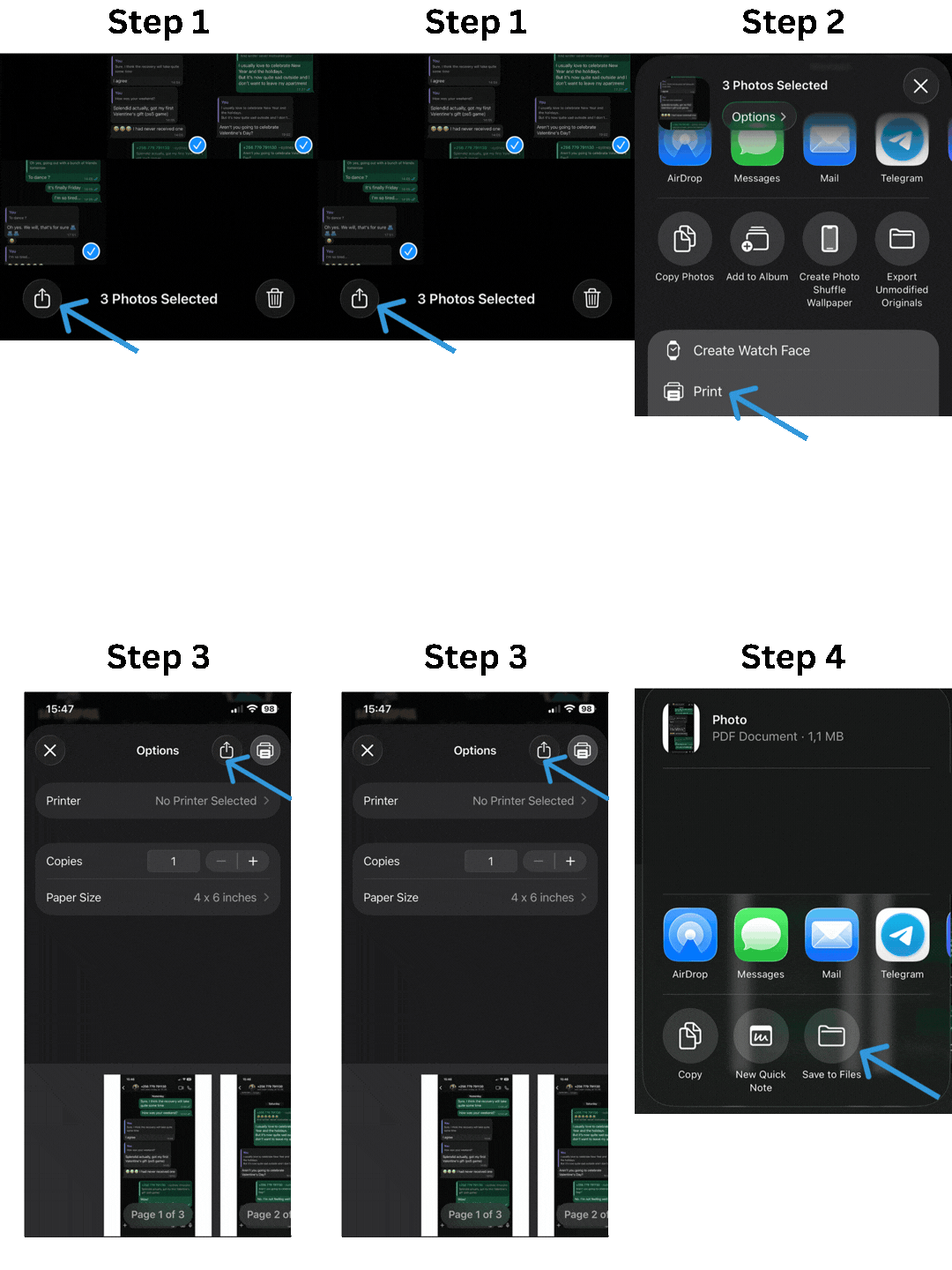
- Open a conversation and take screenshots of it.
- Go to the Photos app on your iPhone. Select the screenshots.
- Touch the “Share” icon.
- Select “Print” from the list.
- Touch the “Share” icon again but in the Print options.
- The screenshots are now gathered into one .PDF document. Touch the “Save to Files” option and select the location.
- You can find the saved iPhone messages in one document in the app “Files”.
Select and copy all the text messages in a conversation
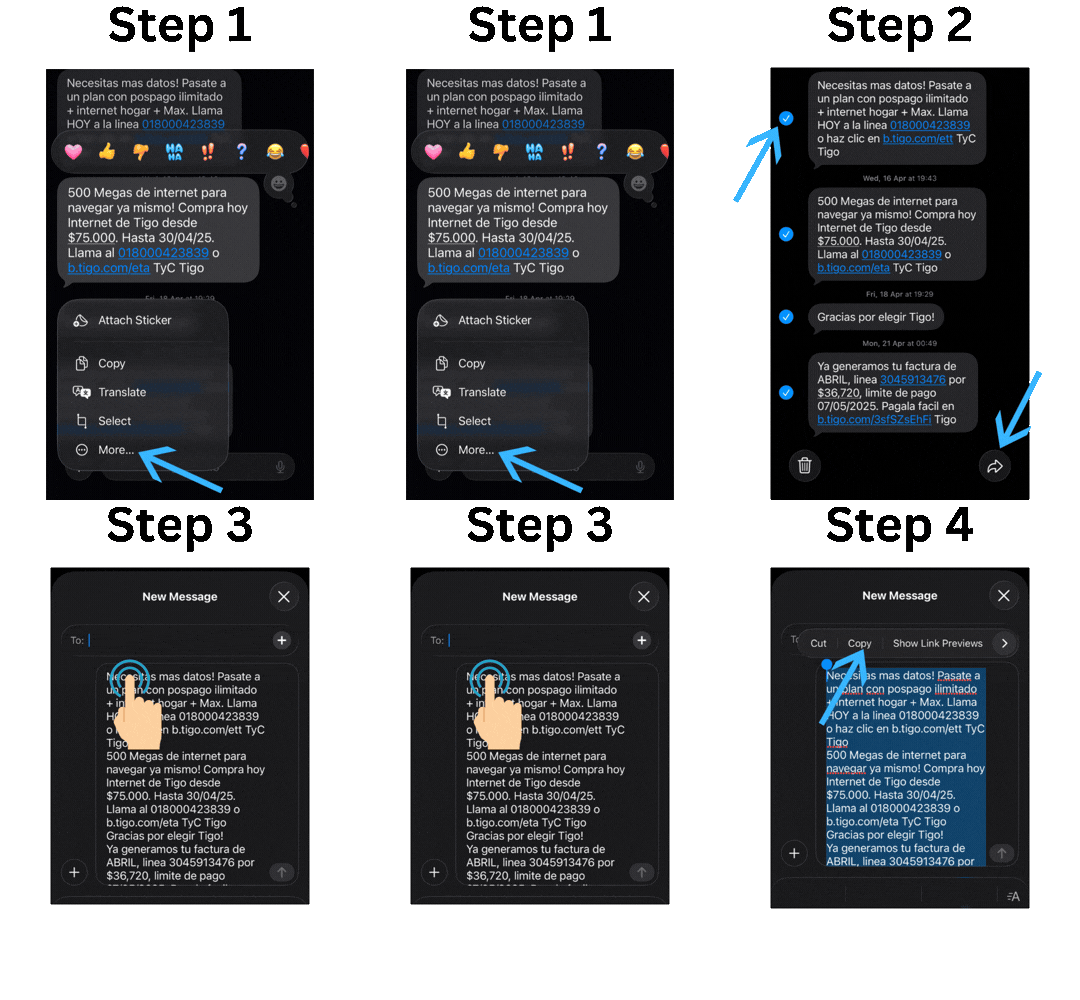
- Open the SMS conversation.
- Press a message and select “More” in the menu that appears.
- Little circles will appear next to all the messages – touch them to select the messages.
- When you selected all the messages, touch the “Share” icon.
- All the messages will be transformed into one plain text without timestamps or sender’s name.
- To copy it, double-touch one word. You can drag the selection dot to select the whole text – the selected text is in blue.
- You will be offered to “Copy” the text. You can then insert it to a Note, an email or another app. Long-press on the empty field for the “Insert” option to appear in a note or a new email message.
Export WhatsApp messages on iPhone
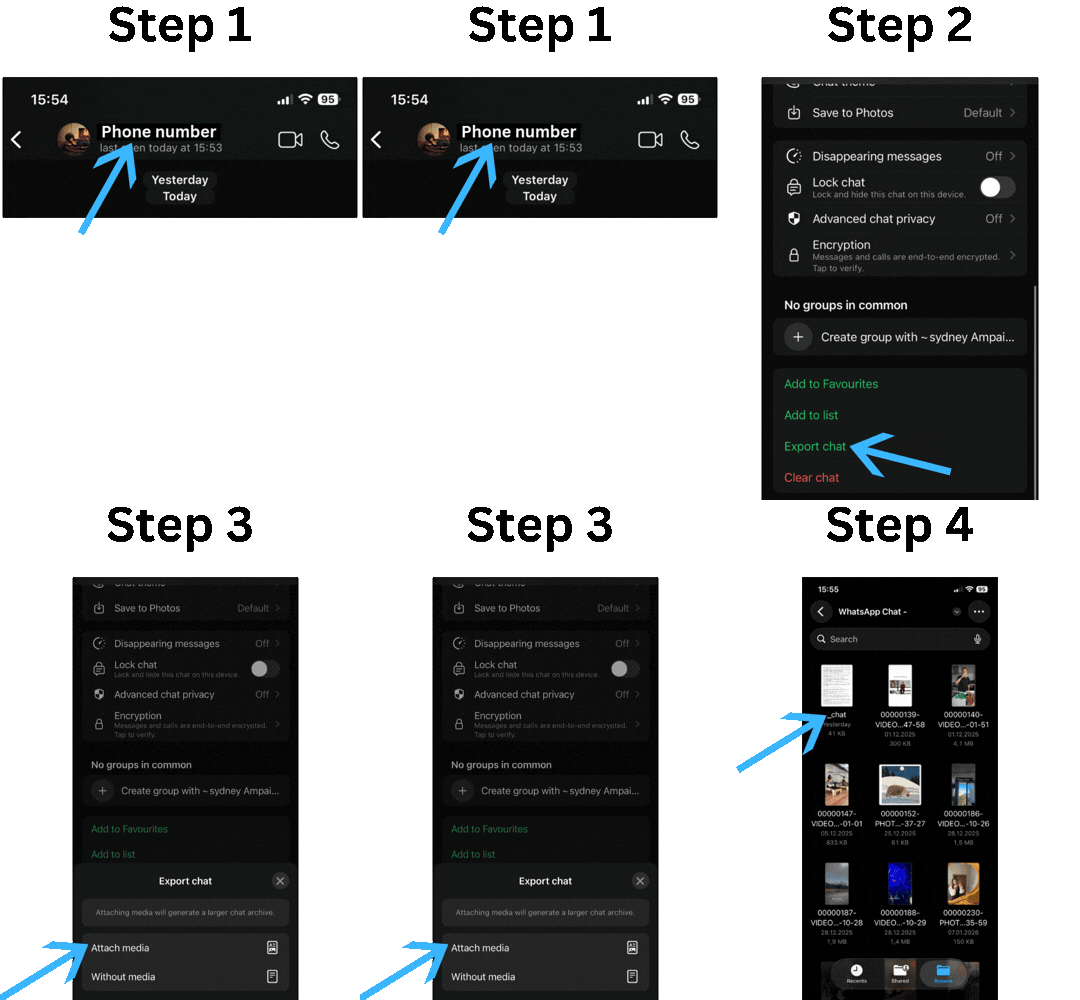
- Open the WhatsApp app on the phone.
- Open a conversation and touch the sender’s/ conversation name.
- Scroll the settings down until you see the “Export chat” option.
- You can attach the media to the exported file or save the conversation without media. Select the option you prefer.
- When the document is ready, you can either send it or save it to the “Files” app.
- The text messages are exported into a simple text document with timestamps and senders’ names. The attachments are saved separately.
FAQ
How do I export iPhone messages with images?
You can’t do it on iPhone. You should use a third-party tool to get a document with all the attachments shown. CopyTrans Contacts lets you export your iPhone messages with all attached photos, videos, and emojis. Choose the Web Page Format (HTML) for the best compatibility.
How do I save text messages to my iPhone instead of the cloud?
iPhones don’t offer a built-in way to save messages locally — they either stay in Messages or go to iCloud. But if you want to download your messages and store them somewhere safe, you can export them to your Windows PC using CopyTrans Contacts and keep a readable copy offline.
Does CopyTrans Contacts save timestamps and sender info?
Yes, here’s how the exported document looks like.
Why are extraction tools not free?
It’s quite time and energy consuming to find a way to first read iPhone data and then copy them over to a computer. Especially, if it’s a computer that works on a system totally different from iOS. It requires work of several developers over an extended period of time.
Conclusion – What is the best way to export iPhone text messages?
Many articles offer iTunes and iCloud as the main solution. However, iTunes and iCloud make a full iPhone backup. They do not export your messages in a readable or printable format. You will have to buy a third-party tool to open the backups and export the conversations. So, you can save your time and energy if you purchase a tool that can export messages from your iPhone directly without iTunes or iCloud.
Tools like CopyTrans Contacts extract your SMS and WhatsApp conversations on a Windows PC. You can select entire conversations or only a few messages and export them in PDF, HTML, Word, Excel or TXT formats.
“Works perfect. Just like I hoped it work. Got over 8,000 text messages off my phone.”
Why is CopyTrans Contacts better than iTunes, iCloud or free iPhone methods?
| CopyTrans Shelbee | iTunes | iCloud | iPhone methods | |
| Requirements | iPhone, cable, PC space, Internet |
iPhone, cable, PC space, Internet, third-party tool for export |
iPhone, Internet, iCloud space, third-party tool for export |
iPhone, Internet |
| Ease of use | 3-Click Export | Complex multistep process | Complex multistep process | Complex multistep process* |
| Readable export | ✔️ | ❌ | ❌ | ✔️* |
| Export attachments | ✔️ | ❌ | ❌ | ✔️* |
| Ready for printing | ✔️ | ❌ | ❌ | ✔️* |
| Legal and Compliance | ✔️ | ❌ | ❌ | ✔️* |
* On iPhone, you can export WhatsApp messages only. As for SMS, you can make screenshots and gather them into a PDF file or forward the plain text. See how to proceed.
